

Choose the Best Brokers, Tools & Training
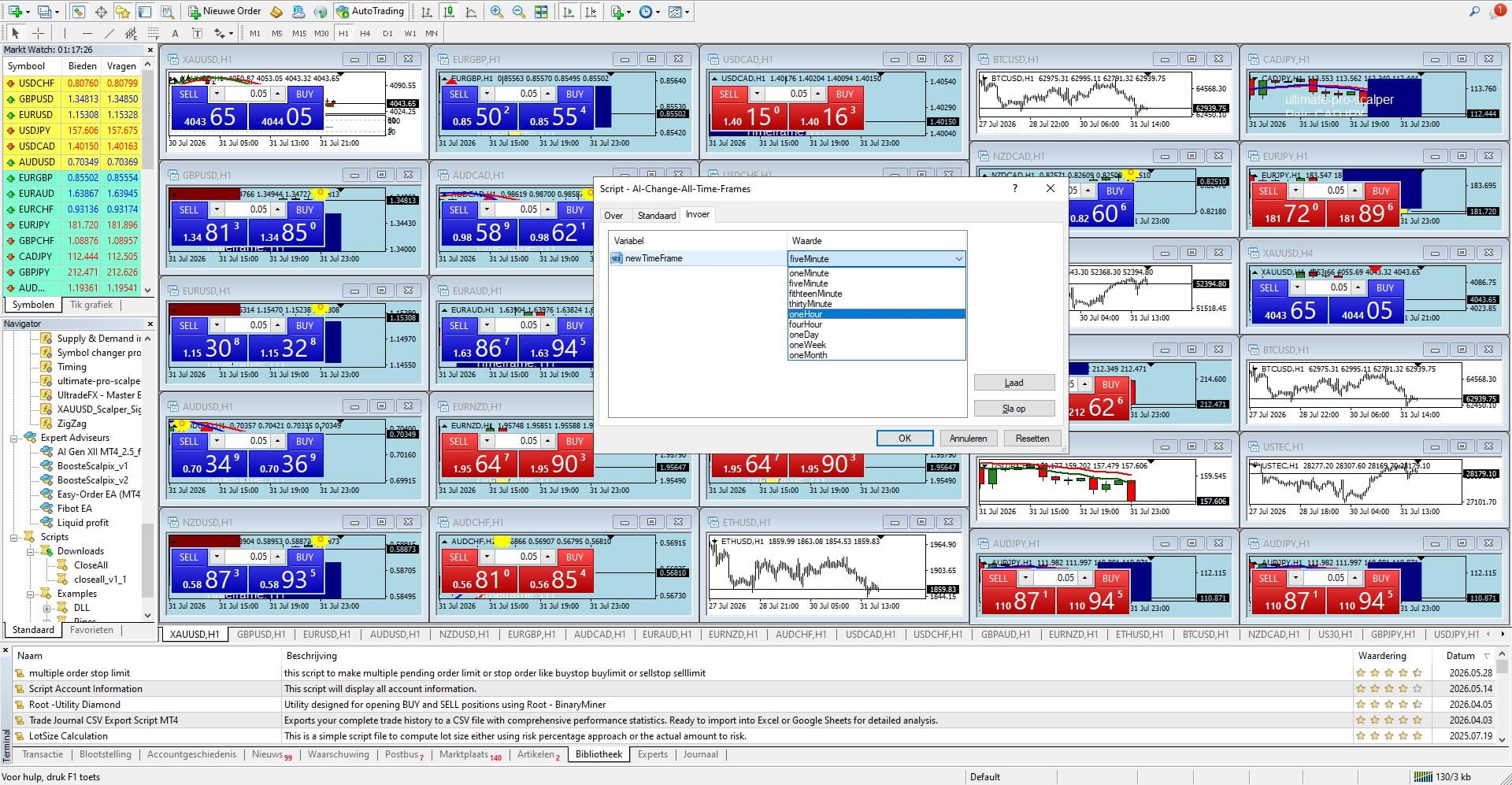
Want to know how to change all timeframes at once on MT4? Manually switching periods on dozens of charts is frustrating and wastes valuable time. Download our free MetaTrader 4 script below to instantly update every single open chart layout with just one automated click. Follow our step-by-step installation guide below to set up the MT4 timeframe changer script and optimize your daily chart analysis workflow immediately.
Launch MT4 and log in to your live or demo trading account.
Click on File in the top menu and select Open Data Folder. A window will pop up on your screen.
Open the MQL4 folder, then double-click the Scripts folder.
Paste your downloaded MT4 timeframe changer file (.ex4 or .mq4) directly into this folder.
Go back to MT4. In the Navigator panel, right-click on Scripts and click Refresh (or simply restart the platform).
Open all the charts you want to analyze simultaneously.
Drag and drop the script from your Navigator panel onto one of your active charts.
Select your desired timeframe in the pop-up settings, and watch every chart update instantly!
Lets stay in contact save this website and come later back!
Do you have questions about Forex? Need assistance with opening an account? Feel free to contact us via Live Chat! We’re here to help you!
Do you have questions about Forex? Need assistance with opening an account? Feel free to contact us via Live Chat! We’re here to help you!

Find your ideal Forex broker